Author: futuristicciitt

  • WooCommerce Checkout Not Working? 12 Common Causes and How to Fix Them

    Is your WooCommerce checkout not working? If customers can add products to their carts but cannot complete their purchases, the problem could be caused by a payment gateway, a plugin conflict, incorrect checkout settings, JavaScript errors, or a server configuration issue.

    A broken checkout can prevent customers from placing orders and cost an online store sales. The good news is that many checkout problems can be diagnosed systematically without rebuilding your website.

    In this guide, I’ll explain 12 common WooCommerce checkout problems, how to troubleshoot them, and when you may need a WordPress developer to investigate the underlying issue.

    Quick checklist: Start here

    Before making significant changes to your store, check these common causes:

    • Confirm that your payment gateway is active and correctly configured.
    • Check whether your shipping methods are available for the customer’s address.
    • Review WooCommerce logs for payment or server errors.
    • Test whether a recently installed or updated plugin is causing a conflict.
    • Check your browser console for JavaScript errors.
    • Clear the relevant website and server caches.
    • Test checkout on a staging site before making major changes to your live store.

    Important: If your store is accepting orders, avoid experimenting on the live checkout page. Back up your website and use a staging environment whenever possible.

    1. Payment gateway configuration problems

    A misconfigured payment gateway is one possible reason customers cannot complete their orders.

    For example, a customer may click the payment button but receive an error, see a failed transaction, or get redirected back to checkout.

    How to troubleshoot it

    1. Go to WooCommerce → Settings → Payments.
    2. Open the payment method you want to investigate.
    3. Confirm that it is enabled.
    4. Review the API credentials and connection settings required by your payment provider.
    5. Check whether the gateway is in test mode or live mode.
    6. Review the gateway’s transaction logs or error messages.

    If the gateway reports an authentication error, verify its credentials through the payment provider’s official dashboard.

    Never share secret API keys or payment credentials when requesting technical support.

    2. A plugin conflict is breaking checkout

    WooCommerce stores often use several plugins for payment processing, shipping, coupons, checkout customization, address autocomplete, subscriptions, and marketing.

    Sometimes, two plugins interfere with each other or with the active theme.

    Symptoms may include:

    • The Place Order button does nothing.
    • Checkout keeps loading.
    • Payment methods disappear.
    • The checkout form resets unexpectedly.
    • An error appears after selecting a shipping method.

    How to identify a conflicting plugin

    1. Create a staging copy of your website.
    2. Temporarily switch to a standard theme, if appropriate.
    3. Disable nonessential plugins on staging.
    4. Test checkout after each change.
    5. Reactivate plugins individually until the problem returns.

    This process helps identify the plugin or combination of plugins responsible for the issue.

    Do not disable payment or checkout plugins on a live store without a safe testing plan.

    3. JavaScript errors prevent checkout from submitting

    WooCommerce checkout depends on JavaScript to validate fields, update totals, refresh shipping options, and communicate with payment integrations.

    If a script fails, the checkout form may appear normal while the Place Order button stops working.

    How to check for JavaScript errors

    1. Open the checkout page in Chrome or another Chromium-based browser.
    2. Right-click the page and select Inspect.
    3. Open the Console tab.
    4. Reload the page.
    5. Look for errors that appear when you interact with checkout.

    Pay particular attention to errors associated with checkout scripts, payment gateways, optimization plugins, or custom JavaScript.

    A console error does not automatically prove that the corresponding script caused the problem. Check the timing of the error and reproduce the checkout failure before changing code.

    If the problem started after enabling JavaScript minification, combining, or deferred loading, test those settings individually.

    4. The Place Order button is not working

    A nonresponsive Place Order button can have several causes, including JavaScript errors, failed validation, an incompatible checkout extension, or a payment gateway script that did not initialize correctly.

    Troubleshooting steps

    • Check whether required fields are missing.
    • Confirm that the selected payment method is available.
    • Inspect the browser console for errors.
    • Test with other checkout-related plugins disabled on staging.
    • Check whether custom JavaScript is interfering with the button.
    • Compare the behavior in a different browser.

    If the button works with a default theme and a minimal plugin configuration, investigate the theme and extensions you disabled.

    Avoid adding JavaScript click handlers as a quick fix before identifying why the normal checkout process is failing.

    5. Shipping methods are missing or incorrect

    Customers may be unable to proceed if no shipping option is available for their delivery address.

    Common causes include:

    • Incorrect shipping zones.
    • Missing shipping methods.
    • Incorrect postcode or country restrictions.
    • Product shipping classes that affect available methods.
    • Third-party shipping integrations returning errors.

    How to fix shipping problems

    Navigate to WooCommerce → Settings → Shipping and review your shipping zones.

    Confirm that the customer’s country, region, and postcode match the intended zone. Check that the zone has an enabled shipping method and that its configuration is correct.

    If you use a live shipping-rate integration, check its logs and API connection.

    Test multiple addresses to determine whether the problem affects every customer or only certain delivery locations.

    6. Required checkout fields are causing validation errors

    Custom checkout fields can improve the purchasing experience, but incorrect validation rules can prevent customers from placing orders.

    For example, a custom field may be marked as required even though it is hidden for certain customers.

    Other possible causes include:

    • Incorrect field names.
    • Invalid field values.
    • Duplicate field identifiers.
    • Conflicting checkout customization plugins.
    • Custom validation code that rejects valid input.

    How to troubleshoot validation

    First, identify which field triggers the error. Then inspect its configuration and validation rules.

    If the field was added by custom PHP, review the relevant checkout hooks and validation logic.

    Test the checkout with different customer details, countries, and account types to identify the conditions that trigger the problem.

    Do not simply remove required validation from important fields without checking why it is failing.

    7. Checkout breaks after a WooCommerce or WordPress update

    Updates can expose compatibility problems between WooCommerce, your theme, payment gateways, and other extensions.

    If checkout stopped working immediately after an update, identify which components changed and review their compatibility information.

    Recommended troubleshooting process

    1. Record the WordPress, WooCommerce, theme, and plugin versions.
    2. Check the WooCommerce status report.
    3. Review recent error logs.
    4. Check the changelog and compatibility notes for the updated component.
    5. Reproduce the problem on staging.
    6. Test a compatible update or targeted rollback if the evidence supports it.

    Keeping software updated is important for security, but updating every component simultaneously makes troubleshooting more difficult.

    8. Caching or optimization is interfering with checkout

    Caching can improve website performance, but incorrectly configured caching may interfere with dynamic checkout behavior.

    Check your page cache, CDN, and optimization settings if customers experience stale cart totals, inconsistent checkout results, or payment-related JavaScript failures.

    What to check

    • Exclude cart, checkout, and account pages from full-page caching where required by your setup.
    • Ensure dynamic cart and checkout requests are not cached incorrectly.
    • Test with JavaScript optimization features disabled on staging.
    • Purge relevant caches after configuration changes.
    • Check whether a CDN rule is affecting checkout scripts or API requests.

    The exact exclusions depend on your caching plugin and checkout implementation. Do not assume that disabling all caching is necessary.

    9. WooCommerce checkout is stuck loading

    An endlessly loading checkout page may indicate a failed AJAX request, a REST API issue, a JavaScript exception, or a server-side error.

    How to investigate

    Open your browser’s developer tools and select the Network tab.

    Reload the checkout page and reproduce the problem. Look for failed requests, particularly those associated with checkout updates, payment processing, or WooCommerce API endpoints.

    Depending on the request, investigate:

    • HTTP status codes such as 400, 403, 404, or 500.
    • Authentication or permission failures.
    • PHP errors in the server logs.
    • Security rules blocking legitimate requests.
    • Incorrect API or endpoint configuration.

    A failed request’s status code is a clue, not a complete diagnosis. Review the response and server logs before applying a fix.

    10. PHP errors or insufficient server resources

    WooCommerce checkout can fail when PHP code throws a fatal error or the server runs into resource limitations.

    Potential causes include incompatible PHP code, exhausted memory, request timeouts, or errors in a custom checkout integration.

    How to diagnose server-side errors

    1. Check the WooCommerce logs under WooCommerce → Status → Logs, where relevant logs are available.
    2. Review your hosting provider’s PHP and web server error logs.
    3. Check the PHP version against the requirements of your installed software.
    4. Review PHP memory and execution limits.
    5. Reproduce the problem with debugging enabled on staging.

    If you enable WordPress debugging, avoid displaying error details publicly. Store logs securely and disable unnecessary debugging after the investigation.

    Increasing memory limits may help when a genuine resource limit is reached, but it will not fix an unrelated PHP fatal error or plugin incompatibility.

    11. WooCommerce checkout blocks or custom checkout templates are incompatible

    WooCommerce supports different checkout implementations, including the traditional shortcode-based checkout and the newer Checkout block.

    Some extensions and customizations support one implementation but not the other.

    If you recently switched checkout types or installed a checkout builder, verify that your payment gateway and other checkout extensions support the implementation you’re using.

    What to do

    • Identify whether your page uses the Checkout block or the classic checkout shortcode.
    • Check your extensions’ compatibility documentation.
    • Review custom checkout templates and hooks.
    • Test with a supported checkout implementation on staging.
    • Replace or update incompatible customizations where necessary.

    If you have custom PHP that depends on classic checkout hooks, it may require changes before it works correctly with a block-based checkout.

    Do not switch checkout types on a live store without testing payment methods, shipping, coupons, taxes, and order creation.

    12. Orders fail even though payment appears successful

    This problem requires particular care because the customer may have been charged even though the WooCommerce order is missing, pending, or marked as failed.

    Possible causes include:

    • A payment notification or webhook failure.
    • A server error during order processing.
    • A payment gateway integration problem.
    • An interrupted customer redirect.
    • An order status transition issue.

    How to investigate safely

    1. Check the payment provider’s transaction dashboard.
    2. Search WooCommerce orders using the available order details.
    3. Review gateway logs and webhook delivery history.
    4. Compare the payment transaction with the WooCommerce order record.
    5. Confirm the actual payment and refund status with the payment provider.

    Never ask a customer to pay again until you have checked whether the original payment succeeded. Duplicate payments can create an additional problem.

    If a payment was captured but the order was not recorded correctly, investigate the transaction and order-processing logs before attempting recovery or issuing a refund.

    Bonus: What if checkout fails only for some customers?

    If checkout works for you but fails for certain customers, investigate differences in their environment rather than assuming the entire store is broken.

    Check whether the problem depends on:

    • A specific country or postcode.
    • A particular payment method.
    • Guest checkout versus logged-in checkout.
    • Mobile versus desktop browsers.
    • Certain products or shipping classes.
    • A particular browser extension or network configuration.

    Ask the customer for the approximate time of the failure, the exact error message, and the steps that reproduce it. Avoid requesting full payment card details or other sensitive information.

    WooCommerce checkout troubleshooting checklist

    Use this checklist to organize your investigation.

    • Reproduce the issue on a staging site.
    • Confirm payment gateway configuration.
    • Check shipping zones and available methods.
    • Inspect browser console errors.
    • Review failed network requests.
    • Examine WooCommerce and PHP logs.
    • Test for plugin and theme conflicts.
    • Review caching and JavaScript optimization.
    • Verify checkout block or shortcode compatibility.
    • Confirm whether any customer payments succeeded.
    • Retest successful order creation and confirmation emails.
    • Document the root cause and verify the fix.

    When should you hire a WooCommerce developer?

    If basic troubleshooting does not resolve the problem, you may need a developer to investigate the underlying code or integration.

    Professional WooCommerce debugging is particularly useful when:

    • Checkout fails only under specific conditions.
    • A custom payment gateway is malfunctioning.
    • A theme or plugin conflict is difficult to isolate.
    • Checkout customizations have stopped working after an update.
    • Orders and payment transactions are becoming inconsistent.
    • You need a custom checkout workflow or integration.

    An experienced developer can investigate the root cause, implement a targeted fix, and test the purchasing process before deploying the change to your live store.

    Need help fixing your WooCommerce checkout?

    A checkout problem can affect customer trust and revenue, especially when it prevents customers from completing their orders.

    If your WooCommerce checkout is broken, your Place Order button is unresponsive, your payment gateway is failing, or your custom checkout needs debugging, I can help investigate the issue and implement an appropriate solution.

    Contact me for WooCommerce troubleshooting, WordPress development, and custom fixes.


    Frequently asked questions

    Why is my WooCommerce checkout page not working?

    Common causes include payment gateway errors, plugin conflicts, JavaScript failures, incorrect shipping settings, caching problems, and PHP errors. Review browser errors and server logs to narrow down the cause.

    Why does the WooCommerce Place Order button do nothing?

    The button may be affected by a JavaScript error, a failed validation rule, an incompatible plugin, or a payment gateway script that has not initialized correctly.

    Can a plugin break WooCommerce checkout?

    Yes. A plugin can conflict with WooCommerce, the active theme, or another extension. Testing on staging with a minimal plugin configuration can help isolate the cause.

    Does caching affect WooCommerce checkout?

    Incorrect caching or JavaScript optimization can interfere with checkout behavior. Review the caching plugin and CDN configuration, especially the handling of dynamic cart and checkout requests.

    How do I debug WooCommerce checkout errors?

    Start by reproducing the issue, inspecting browser console and network errors, reviewing WooCommerce and PHP logs, and testing relevant plugins or customizations on staging.

    Can a WooCommerce developer fix a broken checkout?

    A developer can investigate payment, shipping, JavaScript, PHP, plugin compatibility, and custom checkout issues. The correct fix depends on the underlying cause.
  • WordPress Backend Developer

    Employment Type: Full-Time

    Location: Remote

    Experience: 2+ years

    Job Description

    We are looking for an experienced WordPress Backend Developer with strong PHP and WordPress development skills. The ideal candidate should be comfortable developing custom plugins, themes, REST APIs, WooCommerce functionality, database integrations, and custom WordPress solutions.

    You will work on complex WordPress projects and collaborate with front-end developers to build scalable, secure, and high-performance websites and applications.

    Responsibilities

    • Develop custom WordPress plugins and themes.
    • Build custom functionality using PHP and WordPress APIs.
    • Develop and integrate WordPress REST APIs.
    • Customize WooCommerce functionality and workflows.
    • Create custom post types, taxonomies, metadata, and database structures.
    • Develop custom WooCommerce payment, shipping, and pricing functionality.
    • Work with MySQL and WordPress database structures.
    • Debug and resolve complex WordPress issues.
    • Optimize WordPress performance and database queries.
    • Integrate third-party APIs and services.
    • Follow WordPress coding standards and security best practices.
    • Work with Git and development/staging environments.
    • Collaborate with front-end developers and project managers.

    Requirements

    • 2+ years of professional WordPress development experience.
    • Strong knowledge of PHP.
    • Strong understanding of WordPress core APIs and architecture.
    • Experience developing custom WordPress plugins.
    • Experience with WordPress hooks, filters, actions, and REST API.
    • Strong understanding of MySQL.
    • Experience with WooCommerce development.
    • Good knowledge of HTML, CSS, and JavaScript.
    • Experience integrating third-party APIs.
    • Familiarity with Git.
    • Strong debugging and problem-solving skills.

    Nice to Have

    • Experience with Gutenberg/block development.
    • React.js experience.
    • Experience developing WooCommerce extensions.
    • WP-CLI experience.
    • Knowledge of Redis/object caching.
    • Experience with Docker.
    • Knowledge of WordPress security and performance optimization.
  • WordPress Front-End Developer

    Employment Type: Full-Time

    Location: Remote

    Experience: 2+ years

    Job Description

    We are looking for a talented WordPress Front-End Developer to join our team and build fast, responsive, and visually appealing websites. The ideal candidate should have strong experience with HTML, CSS, JavaScript, Elementor, and Figma.

    You will work closely with designers and backend developers to convert UI designs into pixel-perfect WordPress websites that provide an excellent user experience across desktop, tablet, and mobile devices.

    Responsibilities

    • Develop responsive WordPress websites from Figma designs.
    • Build custom pages and layouts using Elementor.
    • Convert Figma, Adobe XD, or similar designs into pixel-perfect HTML/CSS.
    • Write clean, maintainable HTML, CSS, and JavaScript.
    • Ensure websites work correctly across modern browsers and devices.
    • Optimize front-end performance and Core Web Vitals.
    • Implement responsive layouts and mobile-first designs.
    • Customize WordPress themes and Elementor components.
    • Troubleshoot and fix front-end bugs.
    • Collaborate with designers, WordPress developers, and project managers.
    • Follow SEO and accessibility best practices.

    Requirements

    • 2+ years of experience with WordPress front-end development.
    • Strong knowledge of HTML5 and CSS3.
    • Good knowledge of JavaScript.
    • Strong experience with Elementor and Elementor Pro.
    • Experience converting Figma designs into WordPress websites.
    • Understanding of responsive and mobile-first design.
    • Experience with WordPress themes and plugins.
    • Knowledge of website performance optimization.
    • Good understanding of SEO-friendly HTML.
    • Familiarity with Git is a plus.

    Nice to Have

    • Experience with WooCommerce.
    • Experience with custom Elementor widgets.
    • Knowledge of PHP and WordPress template files.
    • Experience improving Core Web Vitals.
    • Knowledge of accessibility/WCAG.
    • Basic understanding of React.
  • Automate Customer Notifications for Better Appointment Management

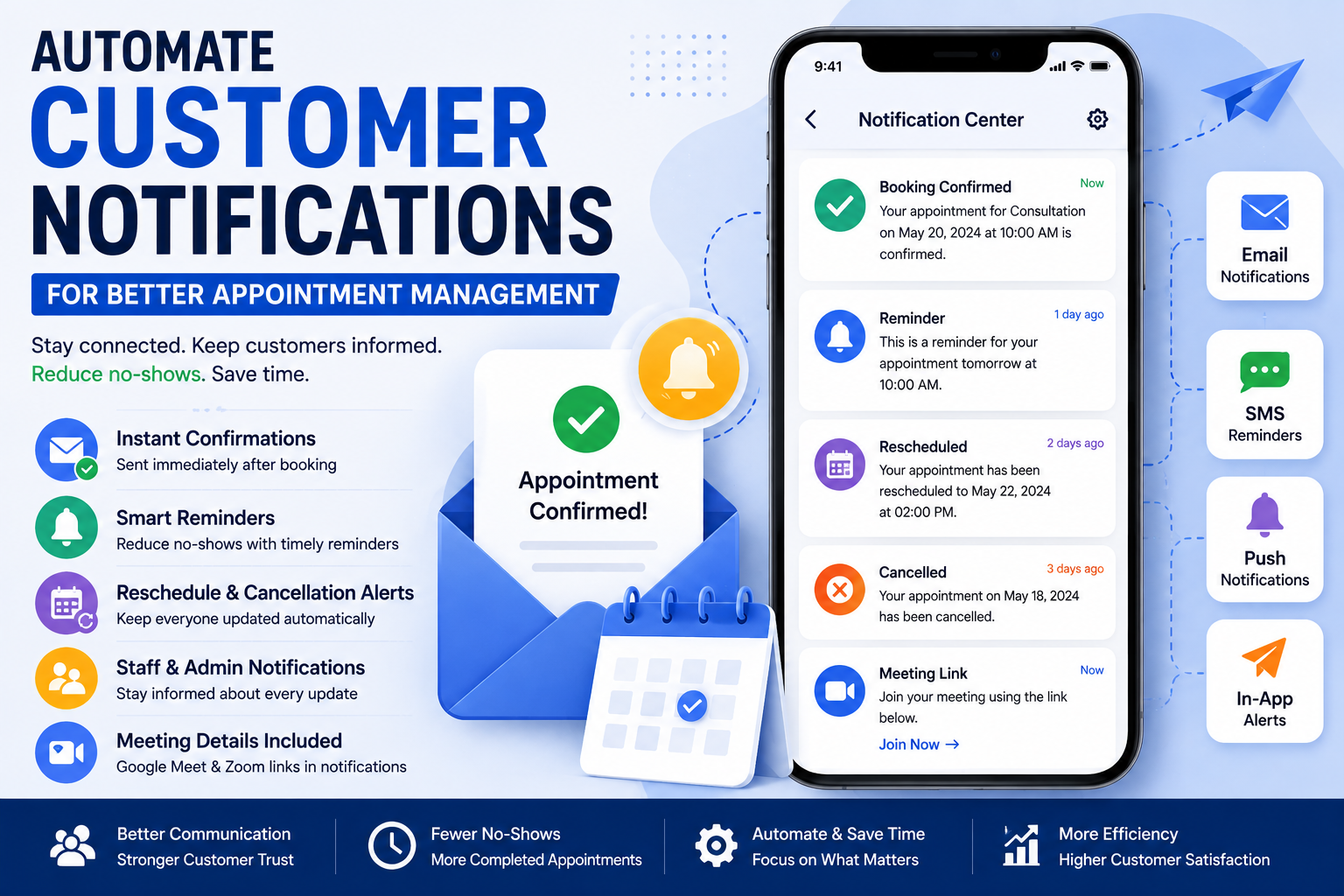
    Automate Customer Notifications for Better Appointment Management

    Clear and timely communication is one of the most important aspects of providing an excellent customer experience. Whether you’re managing a healthcare clinic, beauty salon, consulting firm, educational institute, fitness center, or service-based business, keeping customers informed about their appointments helps build trust and reduce missed bookings.

    Manually sending appointment confirmations, reminders, cancellations, and follow-up messages consumes valuable time and increases the risk of human error. Our Booking Application eliminates these challenges by automating customer notifications, ensuring every customer receives the right information at the right time.

    With built-in notification automation, your business can improve customer satisfaction, reduce no-shows, and save hours of administrative work every week.

    Why Appointment Notifications Matter

    Customers appreciate being kept informed throughout the booking process. Automated notifications provide reassurance that appointments have been successfully scheduled while reminding customers of upcoming visits.

    Without automated communication, businesses often experience:

    • Missed appointments
    • Forgotten bookings
    • Increased phone inquiries
    • Scheduling confusion
    • Manual administrative work
    • Lower customer satisfaction

    Automated notifications solve these problems by keeping everyone informed.

    Instant Booking Confirmations

    The moment a customer books an appointment, the system automatically sends a confirmation notification.

    Confirmation messages can include:

    • Appointment date
    • Appointment time
    • Service selected
    • Assigned staff member
    • Meeting location
    • Online meeting link
    • Payment confirmation
    • Booking reference

    Customers immediately know their booking has been successfully completed.

    Automatic Appointment Reminders

    One of the biggest reasons customers miss appointments is simply forgetting them.

    Our Booking Application automatically sends reminders before scheduled appointments, helping customers remember their bookings and arrive on time.

    Businesses can configure reminders based on their workflow, such as:

    • 24 hours before
    • 12 hours before
    • 2 hours before
    • 30 minutes before

    These reminders significantly reduce no-show appointments.

    Notifications for Rescheduled Appointments

    Plans change, and appointments often need to be moved.

    Whenever an appointment is rescheduled, customers automatically receive updated booking information, eliminating confusion and ensuring everyone has the latest schedule.

    The notification includes:

    • New appointment date
    • Updated time
    • Assigned staff
    • Updated meeting details
    • New calendar information

    Cancellation Notifications

    When appointments are cancelled, customers receive immediate notifications explaining the cancellation and, if applicable, instructions for rescheduling.

    Businesses can also notify staff members instantly to free up their schedules for new bookings.

    Admin Notifications

    Automation doesn’t only benefit customers.

    Administrators and staff members receive notifications whenever:

    • A new appointment is booked
    • An appointment is cancelled
    • A booking is rescheduled
    • A payment is received
    • A customer submits additional information

    This allows your team to respond quickly without constantly monitoring the booking dashboard.

    Staff Notifications

    Each staff member can receive notifications about their assigned appointments.

    This helps employees prepare for upcoming meetings while keeping everyone informed about schedule changes.

    Online Meeting Notifications

    For virtual appointments, our Booking Application automatically includes meeting information in notifications.

    Supported meeting platforms include:

    • Google Meet
    • Zoom

    Customers receive secure meeting links together with appointment details, making it easy to join sessions without searching through emails.

    Payment Notifications

    Whenever a payment is completed, both customers and administrators receive confirmation.

    Supported payment methods include:

    • Stripe
    • PayPal
    • Offline payments

    Payment notifications provide transparency while reducing customer support requests.

    Personalized Messages

    Businesses can customize notification templates to match their brand identity.

    You can include:

    • Company name
    • Business logo
    • Personalized greetings
    • Appointment details
    • Contact information
    • Social media links
    • Support information

    Personalized communication creates a more professional customer experience.

    Reduce Administrative Work

    Instead of manually sending emails or calling customers, businesses can let automation handle routine communication.

    Your staff can focus on delivering excellent service while the booking application manages confirmations and reminders automatically.

    Improve Customer Experience

    Customers appreciate businesses that communicate clearly.

    Automated notifications help customers:

    • Stay informed
    • Arrive on time
    • Avoid missed appointments
    • Receive payment confirmations
    • Access online meeting links easily

    These improvements create a smoother booking experience from start to finish.

    Mobile-Friendly Notifications

    Customers increasingly rely on smartphones for communication.

    Our booking application ensures appointment notifications are easy to read on desktops, tablets, and mobile devices.

    Suitable for Every Business

    Automated appointment notifications are valuable for:

    • Medical clinics
    • Dentists
    • Salons
    • Barbershops
    • Consultants
    • Tutors
    • Lawyers
    • Fitness trainers
    • Coaches
    • Repair services
    • Event planners
    • Photography studios
    • Educational institutions

    Benefits of Automated Notifications

    Businesses using automated notifications enjoy:

    • Fewer missed appointments
    • Reduced administrative workload
    • Better customer communication
    • Faster appointment confirmations
    • Improved customer satisfaction
    • Increased operational efficiency
    • More professional booking experience
    • Better staff coordination

    Why Choose Our Booking Application?

    Our notification system is fully integrated with the booking process and works seamlessly with appointment scheduling, online payments, and virtual meetings.

    Key features include:

    • Instant booking confirmations
    • Automated reminders
    • Rescheduling notifications
    • Cancellation alerts
    • Admin notifications
    • Staff notifications
    • Payment confirmations
    • Google Meet integration
    • Zoom integration
    • Mobile-friendly communication
    • Easy customization

    Conclusion

    Automated notifications are essential for businesses that want to deliver exceptional customer service while reducing administrative work. Our Booking Application keeps customers and staff informed at every stage of the appointment process, helping businesses reduce no-shows, improve communication, and operate more efficiently.

    Whether your appointments take place in person or online, automated notifications ensure every booking is handled professionally from confirmation to completion.

    Frequently Asked Questions

    Can customers receive automatic booking confirmations?

    Yes. Every successful booking automatically generates a confirmation notification.

    Can reminders be customized?

    Yes. Businesses can configure reminder timing based on their scheduling requirements.

    Are staff members notified about appointments?

    Yes. Staff can receive notifications for bookings, updates, cancellations, and schedule changes.

    Does the system support virtual meeting notifications?

    Yes. Google Meet and Zoom meeting details are automatically included for online appointments.

    Can notification templates be customized?

    Yes. Businesses can personalize notification content with branding, contact information, and custom messaging.

  • Manage Appointments Efficiently with an Online Booking System

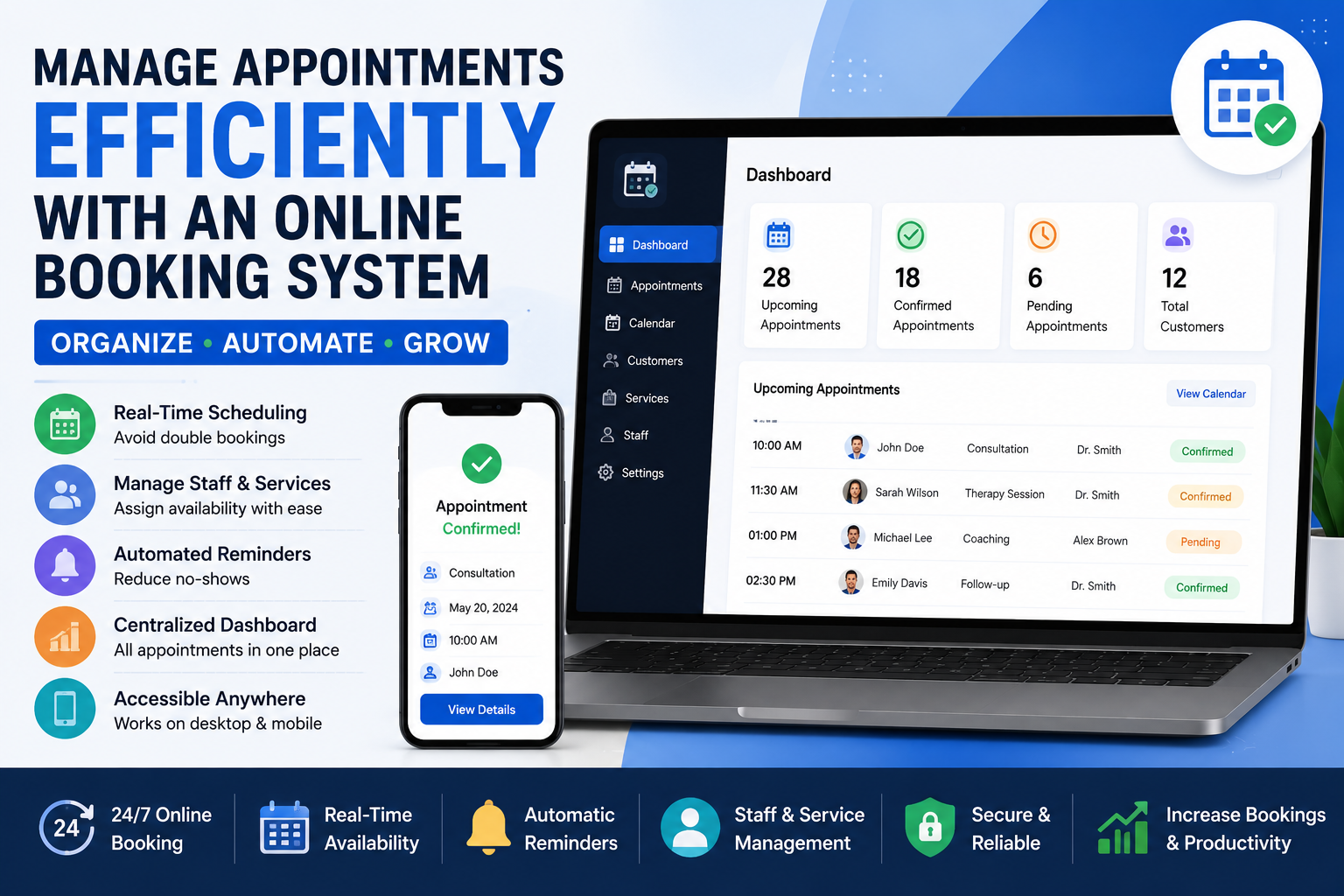
    Manage Appointments Efficiently with an Online Booking System

    Managing appointments manually can be time-consuming and prone to errors. Phone calls, emails, spreadsheets, and paper calendars often result in double bookings, missed appointments, and unnecessary administrative work. As businesses grow, these challenges become even more difficult to manage.

    An online booking system eliminates these problems by allowing customers to schedule appointments directly through your website while automatically organizing your calendar, notifying customers, and streamlining your daily operations.

    Whether you own a healthcare clinic, beauty salon, legal consultancy, coaching business, educational institute, repair service, or any appointment-based business, an online booking system can save time, improve customer satisfaction, and increase revenue.

    What is an Online Booking System?

    An online booking system is a digital solution that enables customers to book appointments through your website or web application at any time of the day.

    Instead of contacting your staff during business hours, customers simply choose a service, select an available date and time, complete their booking, and receive instant confirmation.

    The system automatically updates your schedule, helping your team stay organized while reducing manual work.

    Why Manual Appointment Management Creates Problems

    Many businesses still rely on phone calls, WhatsApp messages, spreadsheets, or handwritten calendars to manage appointments. While these methods may work initially, they become inefficient as your customer base grows.

    Common problems include:

    • Double bookings
    • Missed appointments
    • Scheduling conflicts
    • Time-consuming manual updates
    • Lost customer information
    • Difficulty tracking staff availability
    • Increased administrative costs

    These issues can negatively impact customer experience and reduce business productivity.

    Simplify Scheduling with Our Booking Application

    Our Booking Application is designed to make appointment management effortless. Customers can book appointments online in just a few clicks, while business owners gain complete control over their schedules through an intuitive dashboard.

    From small businesses to large organizations, our system adapts to your scheduling requirements.

    24/7 Appointment Booking

    Your website becomes available for bookings around the clock.

    Customers no longer need to wait until your office opens. They can browse available services, choose their preferred time slot, and complete the booking whenever it’s convenient for them.

    This flexibility improves customer satisfaction and helps generate appointments even outside business hours.

    Real-Time Availability

    The booking calendar updates automatically whenever an appointment is created, modified, or cancelled.

    Customers always see the latest available time slots, eliminating scheduling conflicts and preventing double bookings.

    Easy Appointment Management

    Managing appointments becomes simple through a centralized dashboard.

    Business owners and staff can:

    • View daily schedules
    • Edit appointments
    • Reschedule bookings
    • Cancel appointments
    • Track booking history
    • Manage customer information

    Everything is accessible from one location.

    Staff Scheduling

    Businesses with multiple employees can assign appointments to individual staff members.

    Each team member can have:

    • Personal working hours
    • Break schedules
    • Vacation days
    • Service availability
    • Appointment limits

    This ensures appointments are assigned correctly and resources are used efficiently.

    Multiple Services

    Offer unlimited services through a single booking platform.

    Examples include:

    • Medical consultations
    • Haircuts
    • Spa treatments
    • Legal consultations
    • Business meetings
    • Online coaching
    • Home repair services
    • Fitness sessions
    • Educational classes

    Each service can have its own pricing, duration, availability, and assigned staff.

    Automatic Appointment Confirmations

    Once a customer completes a booking, confirmation messages are sent automatically.

    Customers immediately receive:

    • Booking confirmation
    • Appointment details
    • Date and time
    • Service information
    • Meeting link (if applicable)
    • Payment confirmation

    This reduces customer uncertainty and improves communication.

    Appointment Reminders

    Missed appointments cost businesses valuable time and revenue.

    Our booking application automatically sends reminders before appointments, helping customers remember their scheduled visits and reducing no-shows.

    Calendar Management

    All appointments are displayed in an easy-to-use calendar interface.

    You can quickly:

    • View upcoming bookings
    • Filter appointments
    • Search customers
    • Identify available slots
    • Manage cancellations

    This makes scheduling much easier than using spreadsheets or manual calendars.

    Rescheduling Made Easy

    Customers often need to change their appointments.

    Instead of calling your office, they can reschedule online (if enabled), while your calendar updates automatically.

    This improves customer convenience while reducing administrative work.

    Secure Customer Records

    Customer information is stored securely and organized for future reference.

    You can maintain booking history, contact details, and appointment records while ensuring data remains protected.

    Mobile-Friendly Booking

    More customers now book services using smartphones.

    Our responsive booking application provides an excellent experience across desktops, tablets, and mobile devices.

    Customers can book appointments wherever they are.

    Suitable for Every Industry

    Our booking application is ideal for:

    • Healthcare providers
    • Dentists
    • Beauty salons
    • Barbershops
    • Fitness centers
    • Tutors
    • Consultants
    • Lawyers
    • Accountants
    • Repair services
    • Real estate agencies
    • Photography studios
    • Event planners
    • Coworking spaces
    • Government services

    Benefits of Using Our Booking Application

    By implementing our booking application, businesses can:

    • Save valuable administrative time
    • Reduce scheduling errors
    • Eliminate double bookings
    • Improve customer satisfaction
    • Accept bookings 24/7
    • Increase appointment completion rates
    • Organize staff schedules
    • Improve operational efficiency
    • Scale business operations
    • Deliver a professional customer experience

    Why Choose Our Booking Application?

    Our solution is built for businesses that need a reliable, flexible, and scalable appointment management platform.

    Key features include:

    • Easy website integration
    • Online appointment booking
    • Automated reminders
    • Staff management
    • Calendar management
    • Secure customer data
    • Mobile-friendly interface
    • Stripe, PayPal, and offline payment support
    • Google Meet integration
    • Zoom meeting integration
    • Real-time notifications
    • Customizable booking workflows

    Conclusion

    Efficient appointment management is essential for delivering exceptional customer experiences and maximizing productivity. Our Booking Application helps businesses automate scheduling, organize appointments, reduce administrative work, and keep customers informed throughout the booking process.

    Whether you’re a startup or an established organization, integrating our online booking system into your website will simplify operations, increase bookings, and help your business grow.

    Frequently Asked Questions

    Can customers book appointments at any time?

    Yes. Customers can schedule appointments 24 hours a day, 7 days a week through your website.

    Can multiple staff members use the system?

    Yes. Each staff member can manage their own schedule, services, and availability.

    Can appointments be rescheduled?

    Yes. Businesses and customers can reschedule appointments based on your booking rules.

    Is the booking system mobile-friendly?

    Yes. The booking interface works smoothly on desktops, tablets, and smartphones.

    Does the system support online meetings?

    Yes. Google Meet and Zoom meetings can be automatically scheduled with bookings.

  • Integrate Our Booking Application Into Your Website and Simplify Online Scheduling

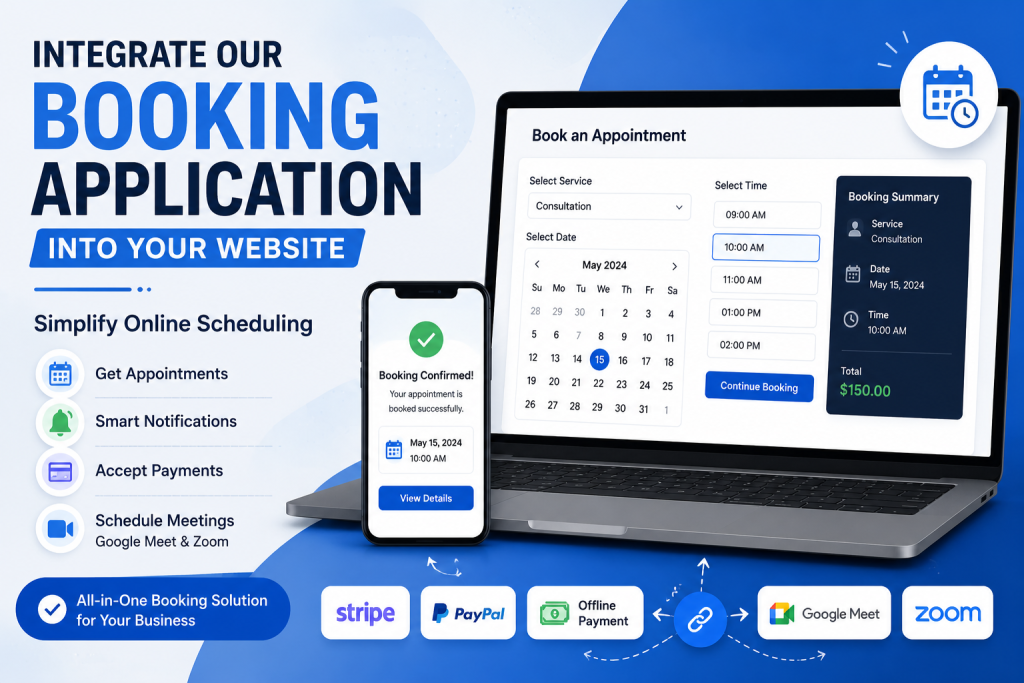
    Integrate Our Booking Application Into Your Website and Simplify Online Scheduling

    In today’s digital world, customers expect to book appointments online without making phone calls or sending emails. Whether you run a healthcare clinic, salon, consultancy, educational institute, fitness center, or professional service, providing a seamless online booking experience improves customer satisfaction and helps your business grow.

    Our Booking Application makes it easy to integrate powerful appointment scheduling into your existing website or web application. Instead of building a booking system from scratch, you can add advanced scheduling features within minutes and start accepting appointments immediately.

    Easy Integration

    Our booking application is designed for developers and businesses alike. It can be integrated into existing websites, custom web applications, CRM systems, SaaS platforms, and WordPress websites with minimal effort.

    You don’t need to redesign your website. Simply integrate the booking module and let your customers book appointments directly from your website.

    Customizable Booking Experience

    Every business has different scheduling requirements. Our application allows you to customize:

    • Available services
    • Staff members
    • Working hours
    • Appointment duration
    • Buffer time between appointments
    • Holidays and unavailable dates
    • Multiple business locations

    This flexibility ensures your booking system matches your business workflow.

    Mobile-Friendly Design

    Customers can schedule appointments from desktops, tablets, and smartphones. The responsive interface provides a smooth booking experience on every device.

    Secure and Reliable

    Security is built into every aspect of the application. Customer information, appointment details, and payment data are handled securely using industry-standard practices.

    Scalable for Every Business

    Whether you receive 10 bookings per month or thousands every day, our booking application is built to scale with your business.

    Perfect For

    • Medical Clinics
    • Dental Practices
    • Beauty Salons
    • Barber Shops
    • Lawyers
    • Consultants
    • Tutors
    • Fitness Trainers
    • Repair Services
    • Event Bookings
    • Real Estate Agents
    • Freelancers

    Why Choose Our Booking Application?

    • Fast integration
    • User-friendly interface
    • Secure booking process
    • Mobile responsive
    • Highly customizable
    • Scalable architecture
    • Developer-friendly APIs
    • Suitable for businesses of every size

    Conclusion

    Adding online appointment scheduling to your website has never been easier. Our Booking Application helps businesses automate scheduling, improve customer experience, reduce administrative work, and increase bookings. Integrate it today and give your customers the convenience they expect.

  • Secure Login Access

    Custom Login Endpoint allows site owners to access the WordPress login screen through a custom URL while restricting direct anonymous access to wp-login.php.

    Need custom development?

    Visit FuturisticIT for WordPress, WooCommerce and other services.

    Features:

    • Custom login endpoint
    • Custom login logo
    • Redirect direct anonymous access
    • Lightweight and easy to configure

    Screenshots

  • Product Manual and Flip Book

    Enhance your WooCommerce store with an advanced Product Manual and Flip Book solution designed to improve customer experience and product documentation management. This plugin allows store owners to upload and display product manuals in an interactive flipbook format directly on product pages.

    Customers can easily access user guides, catalogs, brochures, warranty documents, and technical manuals without leaving the product page. The plugin includes flexible rule-based controls that allow manuals to be assigned to specific products, categories, and user roles.

    Key Features

    • Upload unlimited product manuals and PDF documents
    • Interactive flipbook viewer for modern document display
    • Assign manuals to specific products and categories
    • User role-based visibility controls
    • Customizable design options for each rule
    • Responsive and mobile-friendly interface
    • Clean and lightweight performance

    Perfect for electronics stores, industrial products, digital catalogs, appliances, automotive parts, and any WooCommerce business that requires professional product documentation.

  • Geo Based Pricing Documentation

    This product was built to solve the challenge of applying accurate and flexible pricing based on a customer’s geographic location in WooCommerce stores. Many store owners need the ability to charge different prices depending on country, state, or postcode due to taxes, shipping costs, market differences, or regional pricing strategies. The plugin addresses this gap by introducing a structured rule engine that allows merchants to define pricing conditions at multiple geographic levels and automatically apply.

    How does your product compare to existing solutions?

    Compared to similar WooCommerce geo-pricing solutions, most existing plugins only allow pricing adjustments based on country-level detection, which limits flexibility for stores that need more precise regional control. Our product goes further by enabling pricing rules not just by country, but also by state and postcode, allowing merchants to define highly granular and accurate pricing structures for different regions.

    Installation

    • Upload the plugin files to the /wp-content/plugins/geo-based-pricing directory, or install the plugin through the WordPress plugin screen.
    • Activate the plugin through the ‘Plugins’ screen in WordPress.
    • Make sure WooCommerce is installed and activated.
    • Go to WooCommerce → Geo Based Pricing.
    • Create pricing rules based on country, state, or postcode.
    • Save the settings.

    General Settings

    Geolocation Method: Get the customer location automatically using IP address, shipping address, or billing address.

    Logged in Users: Allow pricing only for logged in users.

    API Settings

    Geolocation Providers: Get API keys which ever you need to use for geolocation data. They will provide country code, state and zipcode.

    Geolocation API Key: Add API key.

    Rules

    Choose Country and its states and zipcodes along with pricing type and pricing amount. So when specific country, state and zipcode match the products prices will be modified. If zipcode missing then it will match only country and state.

    Products: Choose specific products for which you want to enable custom pricing modifications.

    Categories: Choose specific categories for which you want to enable custom pricing modifications.

    User Roles: Allow specific user roles to receive custom pricing. If no roles are selected, the rule will apply to all customers.

    Priority: Its for rule priority. If you have same multiple rules, this field value will decide which ruleset should be used.